 WhereHaveIBeen
How to use WhereHaveIBeen
WhereHaveIBeen visualizes your location history on an interactive map. All you need to do is create an account and set up the OwnTracks app on your phone.
Step 1: Create an account
Visit the home page and click Create an account on the login form. Choose a username and a strong password (at least 12 characters with uppercase, lowercase, and a number). Once your account is created, you'll be automatically logged in.
Step 2: Set up OwnTracks on your phone
OwnTracks is a free, open-source app that periodically sends your location to the WhereHaveIBeen server. Follow these steps to configure it:
2.1 Download the app
Download OwnTracks for iOS or Android.
2.2 Open settings
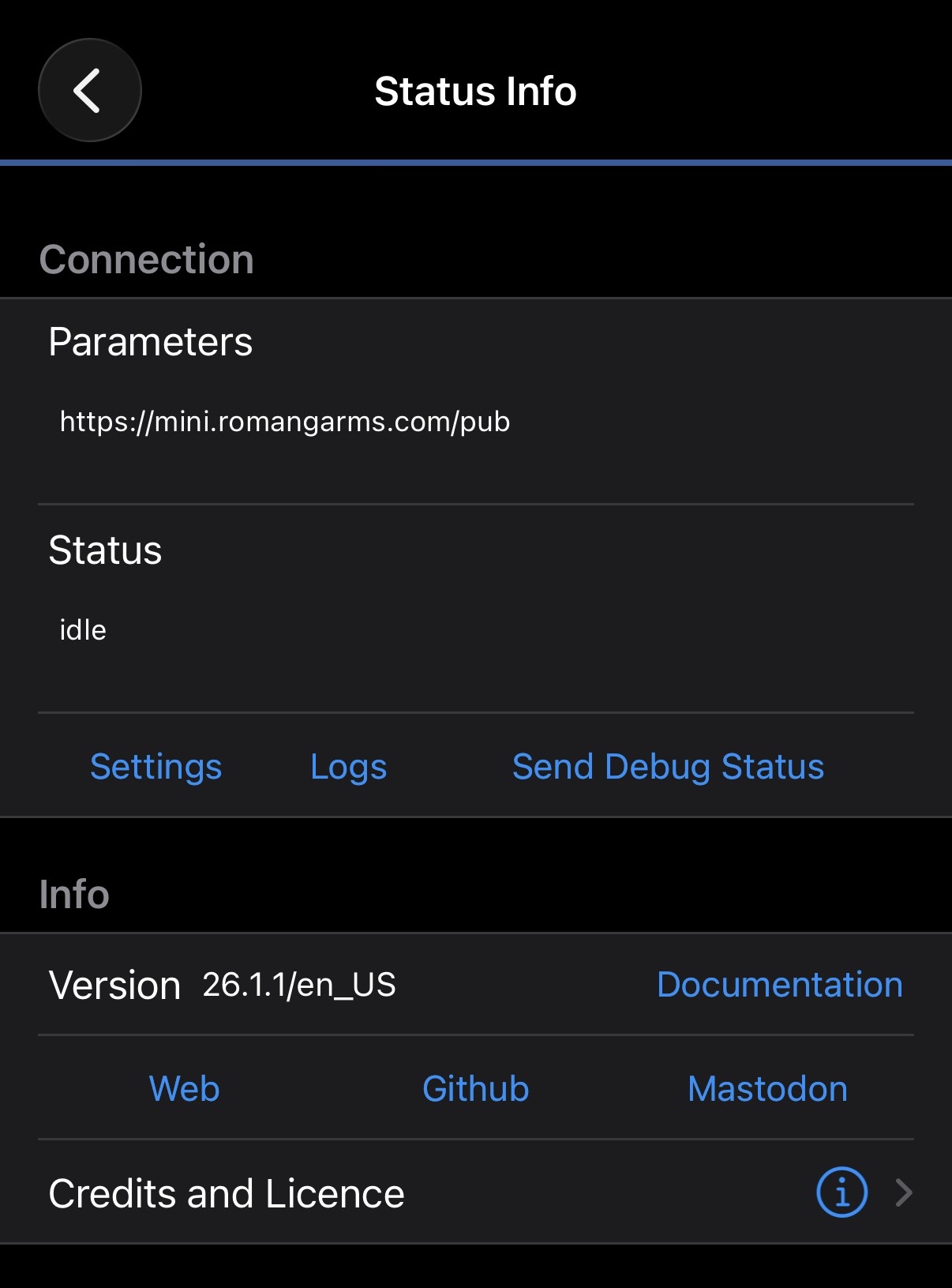
Open the app and tap the (i) button in the top left corner. You'll see the Status Info page showing your connection status. From here, tap Settings.
2.3 Switch to HTTP mode
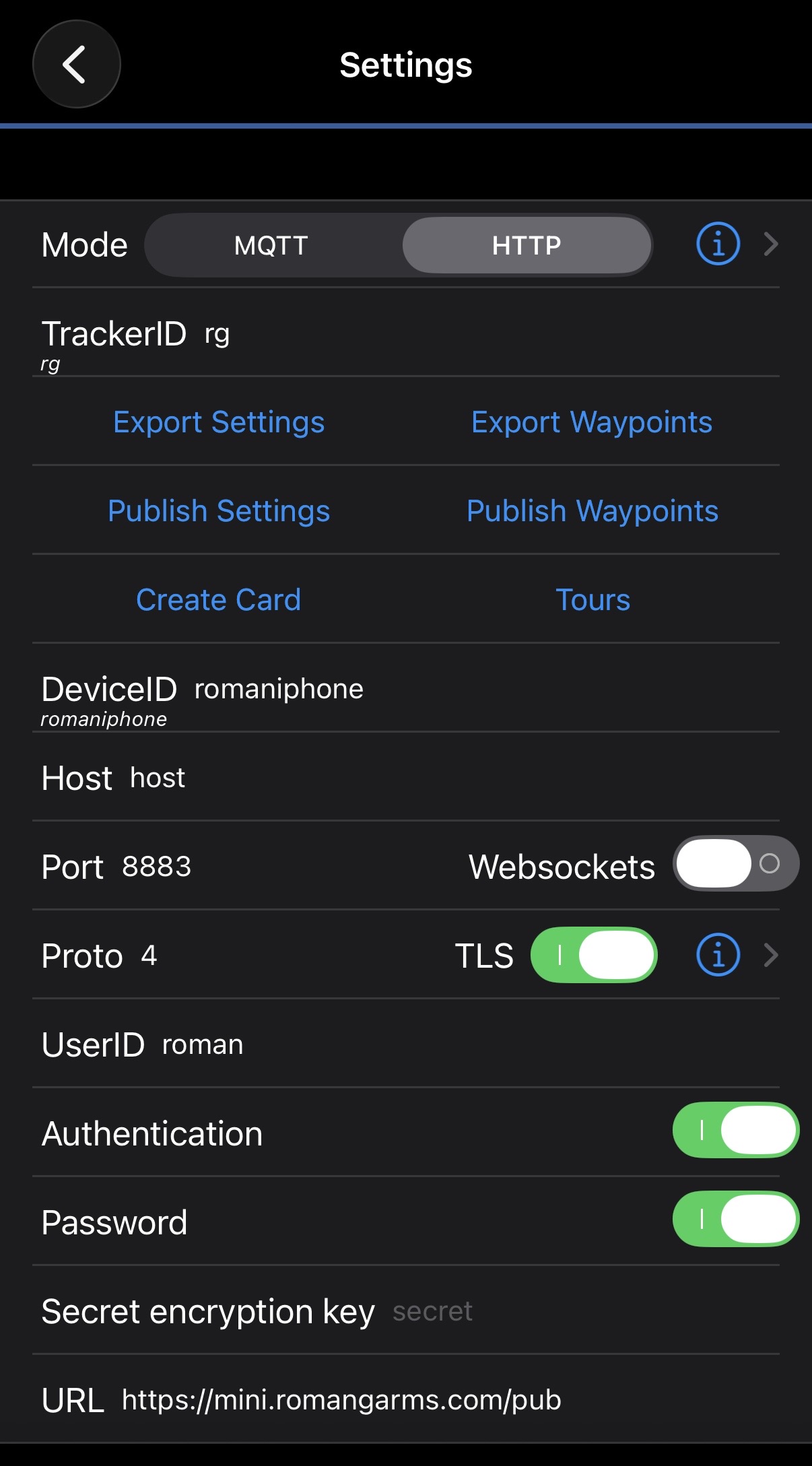
Change the connection mode from MQTT to HTTP. This tells the app to send location updates directly to the WhereHaveIBeen server.
2.4 Enter your credentials
Set UserID to the username you created in Step 1. Set Password to your password.
2.5 Set your device ID
Set DeviceID to something memorable, like "phone" or "pixel". This label helps identify the device on the map if you use multiple devices.
2.6 Set the server URL
Set the URL to:
https://mini.romangarms.com/pub
2.7 Verify it works
Go back to the main OwnTracks screen and tap the upload button (arrow icon) to send your current location. Then tap the (i) button to check the Status Info page. If everything is set up correctly, you should see your connection URL and a status of "idle".
Step 3: View your map
Head back to the WhereHaveIBeen home page and log in. After a few location updates are recorded, your map will start showing the areas you've explored. The blue overlay shows everywhere you've been.
Open Configure (the chip on the map showing your device and time frame) to switch devices, change the time frame, adjust the buffer size, or manage your cache. Use the Routes / Heatmap toggle to change how your history is drawn, and switch to Everyone's Roads in the top bar to see the merged map of every user on the server.